

How to install an indicator in MetaTrader 4?
Friends, it’s great to see you! The MetaTrader 4 terminal does not support many of the indicators that can be found on the internet. It comes with a standard set of indicators that developers believe are the most popular. Suppose you want to put a copyright on your work.
Assume you’ve found an indicator you like online, studied it thoroughly, and then decided to download it. Installing it now is necessary in order for it to appear in your terminal. Take a closer look at this process.
Price Action Indicator is an example of a simple indicator that can be used to identify the most powerful and well-known price patterns.
Download the archive with the indicator. Depending on the version, it could contain either an.ex4 or an.mq4, or even both at once. Make a copy of them.
Once these files are in the MQL4/Indicators folder, we have two options.
There are a few ways to do this, but the most common is to open the c:\Program Files\MetaTrader\MQL4\indicators\ (the MetaTrader folder usually contains a broker’s name) and paste the files into the Indicators directory.
Second Way: Open the MT4 terminal
Click “File” and then “Open Data Directory” from the main menu bar at the top of the screen.

How to install an indicator in MetaTrader 4
You will see a folder open up, select MQL4, then indicators, and paste the copied files of our indicator there. Terminate the terminal and reopen it.
In the terminal, we need to locate and run our indicator.
The “Custom” directory in the MT4 terminal houses all newly installed indicators.
In the upper main menu of the terminal, click “Insert“-“indicators” – “Custom,”. Take a look at the screenshot here:
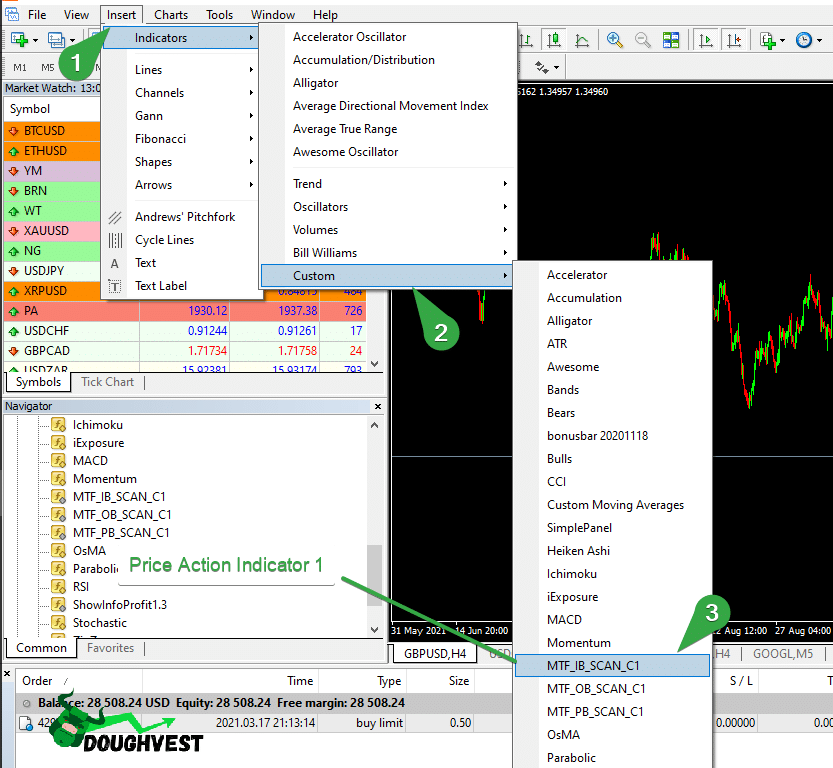
Click on our installed indicator, the settings window should appear:

Click “OK,” and the indicator appears on our terminal’s chart.

Now we see how the indicator identifies price action patterns. That’s it!
Of course, the indicator has various settings and parameters; however, we will not discuss them in this article; instead, I focus on installing the indicator (s) in the terminal.
Regarding the Price Action indicator, I have a separate article dedicated to it; if you want to learn more about it, click this link.
As you can see, everything is straightforward. The forex broker I use is Libertex. Don’t forget to follow us on Telegram. Goodbye!